Python安装HanLp时使用国内镜像加速3.7
下载Python镜像
docker pull python:3.7.10-buster
Debian Buster 10.3
运行
docker run -itd --name virhuiai-nlp-try2 python:3.7.10-buster
进入容器
docker exec -it virhuiai-nlp-try2 /bin/sh
提高 apt update 速度
查看当前sources.list
cat /etc/apt/sources.list
# cat /etc/apt/sources.list
# deb http://snapshot.debian.org/archive/debian/20210208T000000Z buster main
deb http://deb.debian.org/debian buster main
# deb http://snapshot.debian.org/archive/debian-security/20210208T000000Z buster/updates main
deb http://security.debian.org/debian-security buster/updates main
# deb http://snapshot.debian.org/archive/debian/20210208T000000Z buster-updates main
deb http://deb.debian.org/debian buster-updates main
备份sources.list
mv /etc/apt/sources.list /etc/apt/sources.list.back.20210303
使用新的内容(没有安装vi、vim)
touch /etc/apt/sources.list
echo 'deb https://mirrors.tuna.tsinghua.edu.cn/debian/ buster main contrib non-free' >> /etc/apt/sources.list && \
echo '# deb-src https://mirrors.tuna.tsinghua.edu.cn/debian/ buster main contrib non-free' >> /etc/apt/sources.list && \
echo 'deb https://mirrors.tuna.tsinghua.edu.cn/debian/ buster-updates main contrib non-free' >> /etc/apt/sources.list && \
echo '# deb-src https://mirrors.tuna.tsinghua.edu.cn/debian/ buster-updates main contrib non-free' >> /etc/apt/sources.list && \
echo 'deb https://mirrors.tuna.tsinghua.edu.cn/debian/ buster-backports main contrib non-free' >> /etc/apt/sources.list && \
echo '# deb-src https://mirrors.tuna.tsinghua.edu.cn/debian/ buster-backports main contrib non-free' >> /etc/apt/sources.list && \
echo 'deb https://mirrors.tuna.tsinghua.edu.cn/debian-security buster/updates main contrib non-free' >> /etc/apt/sources.list && \
echo '# deb-src https://mirrors.tuna.tsinghua.edu.cn/debian-security buster/updates main contrib non-free' >> /etc/apt/sources.list
安装 常用的 vim mlocate unzip wget
set -eux; \
apt-get update && \
apt-get install -y --no-install-recommends \
vim \
mlocate \
unzip \
tree \
wget && \
rm -rf /var/lib/apt/lists/* && \
apt-get clean
更新文件索引
updatedb
国内镜像
临时方法
# 正常用法
pip3 install requests

# 加-i后使用指定镜像的用法
pip3 install -i https://pypi.tuna.tsinghua.edu.cn/simple requests
使用配置文件,一次解决
查看帮助:
# pip3 -h

Usage:
  pip3 <command> [options]

Commands:
  install                     Install packages.
  download                    Download packages.
  uninstall                   Uninstall packages.
  freeze                      Output installed packages in requirements format.
  list                        List installed packages.
  show                        Show information about installed packages.
  check                       Verify installed packages have compatible dependencies.
  config                      Manage local and global configuration.
...
可知,使用config参数。
#pip3 config -h

Usage:
  pip3 config [<file-option>] list
  pip3 config [<file-option>] [--editor <editor-path>] edit

  pip3 config [<file-option>] get name
  pip3 config [<file-option>] set name value
  pip3 config [<file-option>] unset name
  pip3 config [<file-option>] debug
。。。
看完说明,进行具体操作。
查看当前源
pip3 config list
# 这边返回是空的
设置国内的镜像源
# pip3 config set global.index-url https://pypi.tuna.tsinghua.edu.cn/simple/
Writing to /root/.config/pip/pip.conf
# pip3 config set global.trusted-host mirrors.aliyun.com
Writing to /root/.config/pip/pip.conf
查看设置后配置的变化:
# cat /root/.config/pip/pip.conf
[global]
index-url = https://pypi.tuna.tsinghua.edu.cn/simple/
trusted-host = mirrors.aliyun.com

# pip3 config list
global.index-url='https://pypi.tuna.tsinghua.edu.cn/simple/'
global.trusted-host='mirrors.aliyun.com'
常用镜像源
阿里云
http://mirrors.aliyun.com/pypi/simple/

清华大学
https://pypi.tuna.tsinghua.edu.cn/simple/

中国科技大学
https://pypi.mirrors.ustc.edu.cn/simple/

中国科学技术大学
http://pypi.mirrors.ustc.edu.cn/simple/

豆瓣
https://pypi.douban.com/simple/

华中理工大学:
http://pypi.hustunique.com/

山东理工大学:
http://pypi.sdutlinux.org/

新版ubuntu要求使用https源,要注意。
后面pip安装包时就可以看到速度的变化了。
Hanlp-安装-使用阿里云镜像
pip3 config set global.index-url https://mirrors.aliyun.com/pypi/simple/
pip3 config set global.trusted-host mirrors.aliyun.com
https://github.com/hankcs/HanLP
海量级native API
依赖PyTorch、TensorFlow等深度学习技术,适合专业NLP工程师、研究者以及本地海量数据场景。要求Python 3.6以上,支持Windows,推荐*nix,可以在CPU上运行,推荐GPU/TPU。
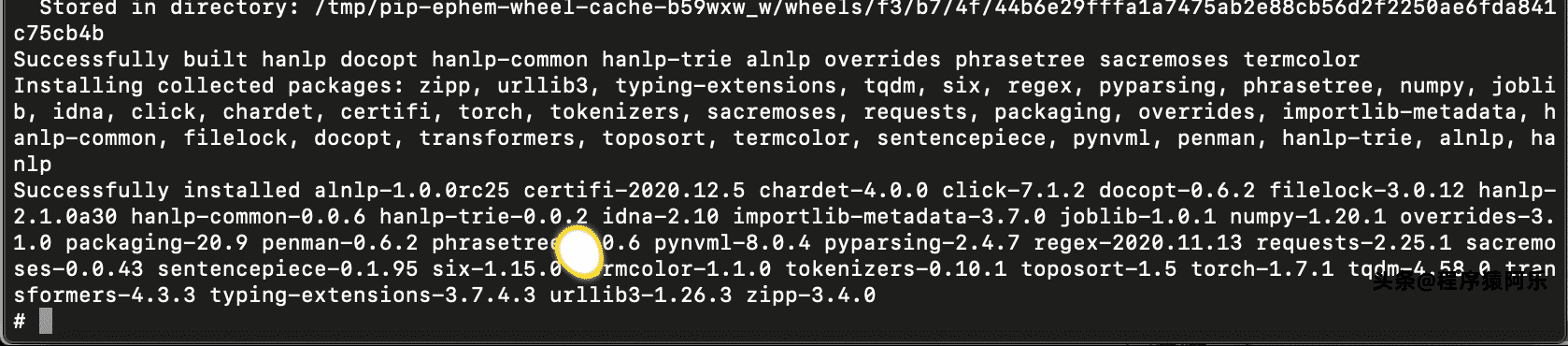
pip3 --no-cache-dir --default-timeout=6000 install hanlp
Hanlp-快速上手
官方说明:
import hanlp
HanLP = hanlp.load(hanlp.pretrained.mtl.CLOSE_TOK_POS_NER_SRL_DEP_SDP_CON_ELECTRA_SMALL_ZH) # 世界最大中文语料库
HanLP(['2021年HanLPv2.1为生产环境带来次世代最先进的多语种NLP技术。', '阿婆主来到北京立方庭参观自然语义科技公司。'])

可能存在的问题:下载慢!
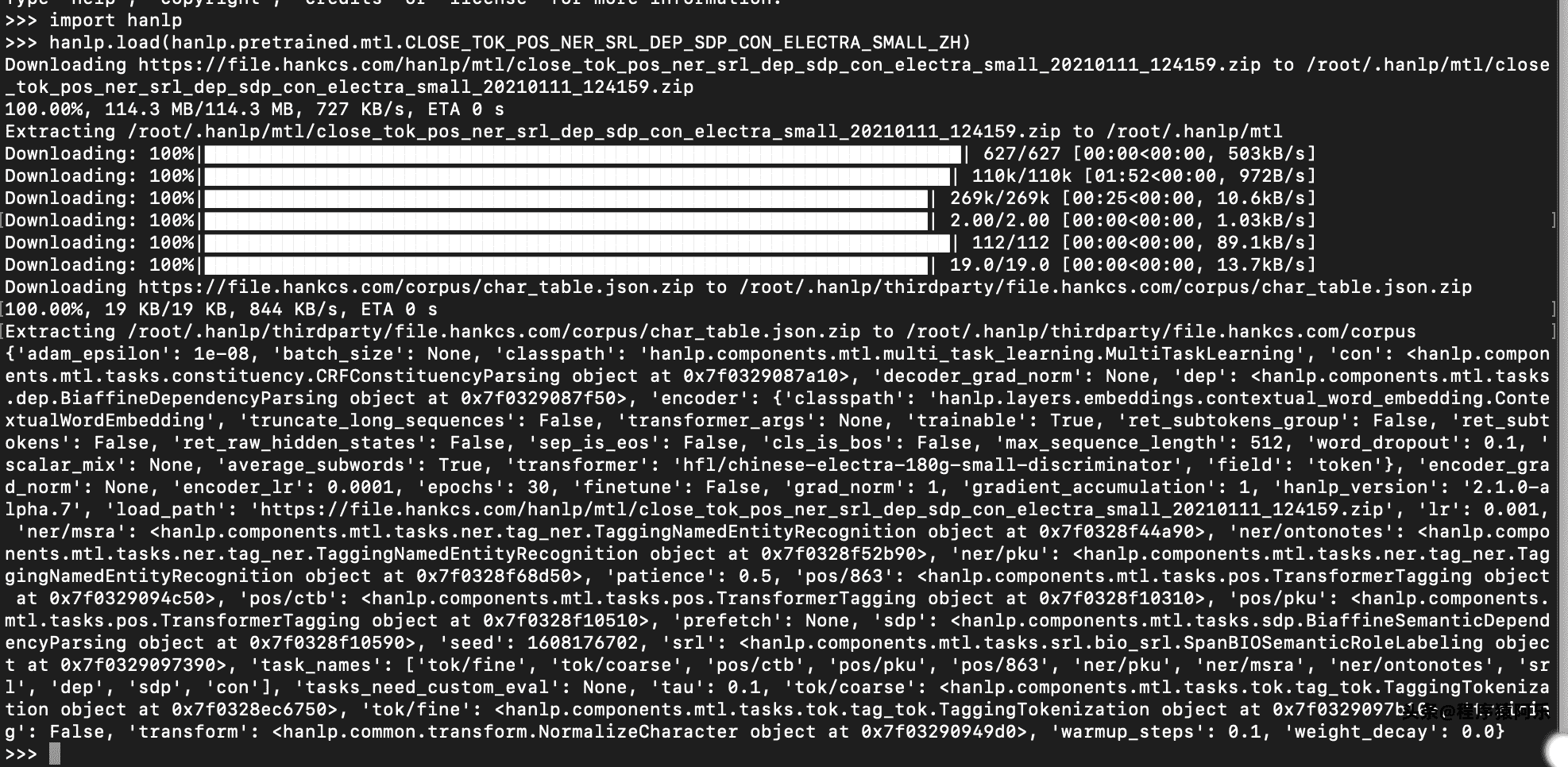
Downloading https://file.hankcs.com/hanlp/mtl/close_tok_pos_ner_srl_dep_sdp_con_electra_small_20210111_124159.zip to /root/.hanlp/mtl/close_tok_pos_ner_srl_dep_sdp_con_electra_small_20210111_124159.zip
解决,离线下载后,拷贝到容器:
# 在宿主机
docker cp /Volumes/RamDisk/close_tok_pos_ner_srl_dep_sdp_con_electra_small_20210111_124159.zip virhuiai-nlp-try2:/root/.hanlp/mtl/
我这会是正常下载了:
再次运行:
import hanlp
HanLP = hanlp.load(hanlp.pretrained.mtl.CLOSE_TOK_POS_NER_SRL_DEP_SDP_CON_ELECTRA_SMALL_ZH) # 世界最大中文语料库
# 这句会停顿一会儿
HanLP(['2021年HanLPv2.1为生产环境带来次世代最先进的多语种NLP技术。', '阿婆主来到北京立方庭参观自然语义科技公司。'])
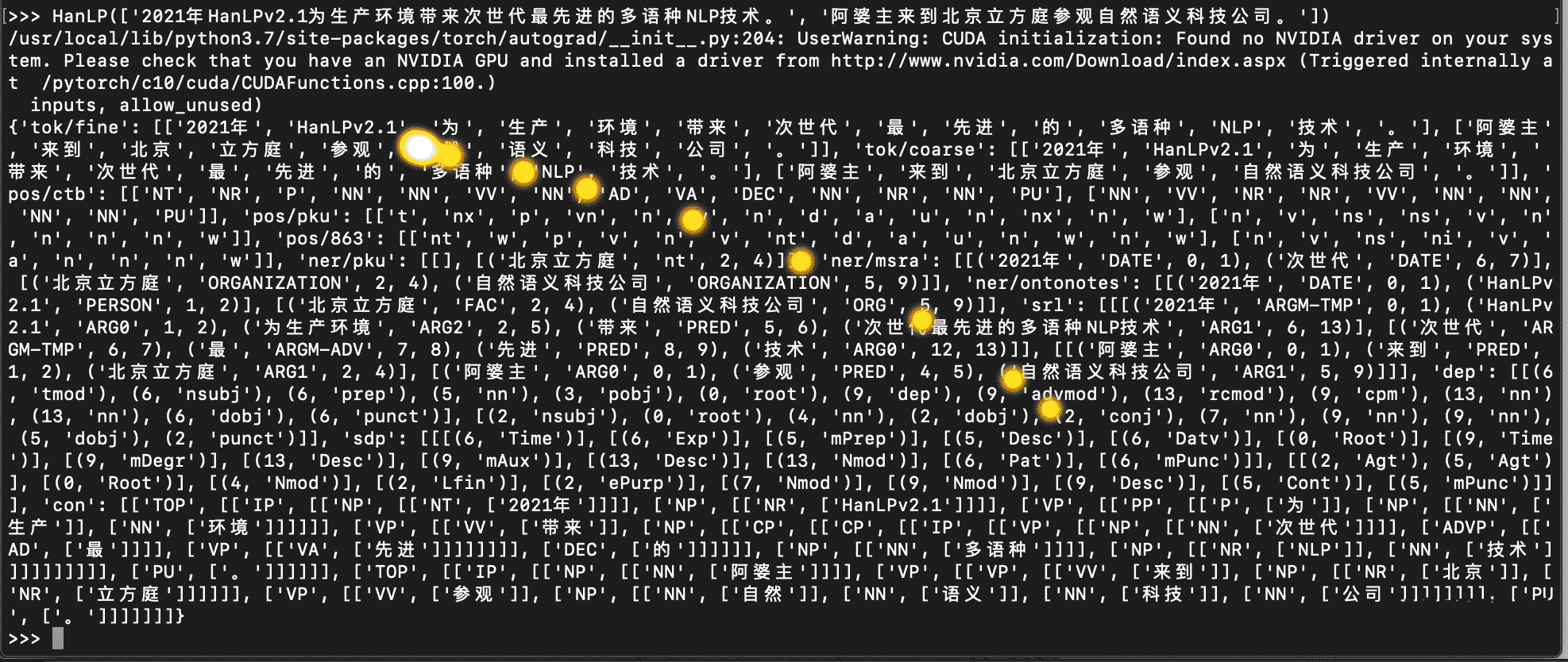
Native API的输入单位为句子,需使用多语种分句模型或基于规则的分句函数先行分句。
特别地,Python HanLPClient也支持当作函数调用,在语义上完全一致。简洁的接口也支持灵活的参数,常用的技巧有:
-
灵活的
tasks任务调度,任务越少,速度越快。如
HanLP('商品和服务', tasks='tok')指定仅执行分词;>>> HanLP('商品和服务', tasks='tok') {'tok/fine': ['商品', '和', '服务']}大多数任务依赖分词,
tasks='dep'会执行分词和依存句法分析;>>> HanLP('简洁的接口也支持灵活的参数', tasks='tok') {'tok/fine': ['简洁', '的', '接口', '也', '支持', '灵活', '的', '参数']}而
tasks=['pos', 'dep'], skip_tasks='tok*'表示跳过分词仅执行词性标注和依存句法分析,此时需传入单词列表;skip_tasks='tok/fine'表示使用粗分标准分词并执行后续任务。在内存有限的场景下,用户还可以删除不需要的任务达到模型瘦身的效果。
-
高效的trie树自定义词典,以及强制、合并、校正3种规则,请参考demo和文档。规则系统的效果将无缝应用到后续统计模型,从而快速适应新领域。
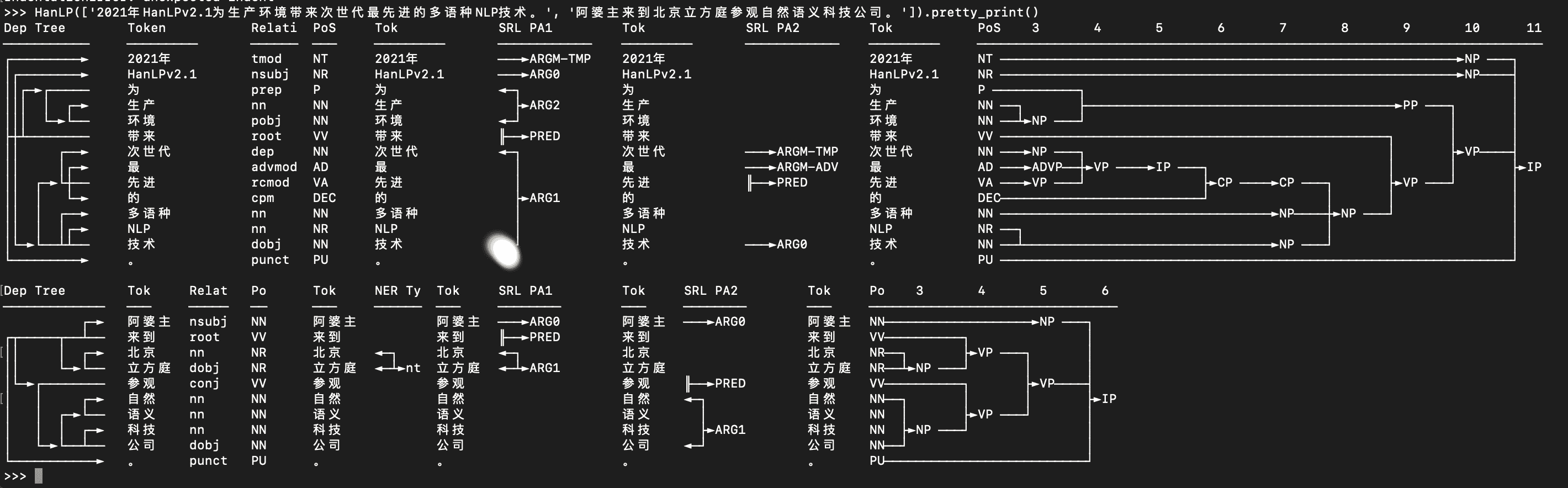
基于等宽字体的可视化:
HanLP(['2021年HanLPv2.1为生产环境带来次世代最先进的多语种NLP技术。', '阿婆主来到北京立方庭参观自然语义科技公司。']).pretty_print()
导出镜像
docker export -o /Users/virhuiaivirhuiai/Documents/阅读中/自然语言处理/hanlp2_python37.tar virhuiai-nlp-try2
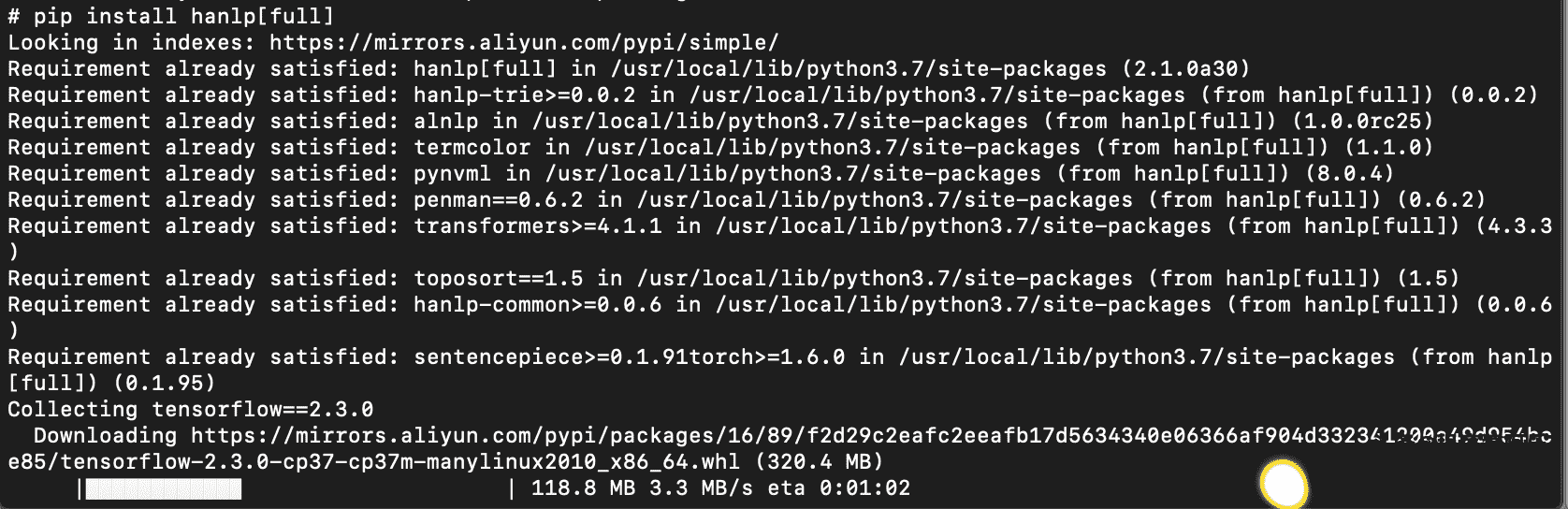
Hanlp full
pip install hanlp[full]